Mappings
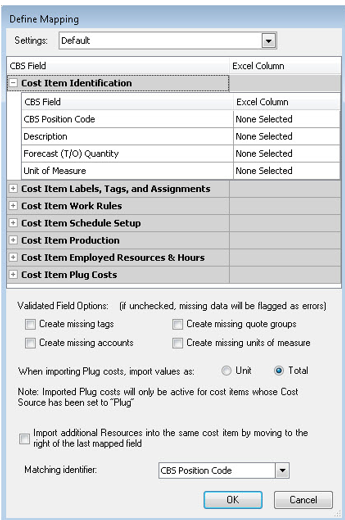
Mappings can be saved and selected in the Settings field. You can import Microsoft Excel workbooks that are in different formats without having to re-define the import settings every time. Save your mapping settings by name so they can be re-used whenever importing workbooks of a similar format. This feature lets you save your current mappings for use at a later time. This comes in handy if you want to change your mapping for an import, and then set it back to a previously used mapping.
Save a New Mapping
-
From the Cost Breakdown Structure (CBS) Register menu, choose Data Source > Import/update CBS from > Excel.
-
Select the Define Mapping button.
-
Define your mapping instructions.
-
Click the drop-down arrow on the Settings field, and then click the Save icon.
-
On the Save New Settings dialog box, type a Name for the new setting, and then click OK.
Select a Saved Mapping
Saved mappings can be selected in the Settings field. This feature comes in handy if you have saved a previously defined mapping, then changed your mappings for a different import, and now you want to use a previously defined mapping again. After you have saved a mapping, you can quickly retrieve it at a later date.
Selecting a Saved Mapping
-
From the Cost Breakdown Structure (CBS) Register menu, select Data Source > Import/update CBS from > Excel.
-
Select the Define Mapping button.
-
Click the drop-down arrow on the Settings field, and then select the preferred mapping setting.
Define Mapping
The mapping tool lets you specify which column in the workbook will fill which field on the Cost Breakdown Structure (CBS) Register in Estimate. Each column in your worksheet can only be mapped to one field in the CBS at any given time. Attempting to map the same column to multiple fields will result in an error.
In addition to defining your mappings, you can also specify which field will be used as the matching identifier. The matching identifier is important because it tells the import routine which cost item in the workbook matches which cost item in the CBS.
Define Mapping
-
From the Cost Breakdown Structure (CBS) Register menu, select Data Source > Import/update CBS from > Excel.
-
Select the Define Mapping button.
-
Click on the Expand icon to the left of the Cost Item Identification title to expand the tree.
-
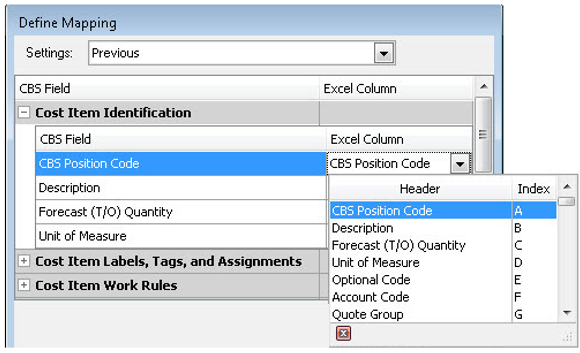
To map the CBS Position Code field in Estimate to a column in the worksheet, click in the field to the right of CBS Position Code to show a list of the columns in your workbook and select the column in your worksheet that represents the CBS Position Code.
-
Repeat this process for each of the CBS fields that you want to import data from your workbook.
You are not required to map all of the fields in Estimate to a column in the workbook. You can map as many or as few fields as you want, and you can map different fields or sets of fields each time you import if you so choose.
If after import, you change the order and structure of the cost items in the CBS, it is likely that the CBS Position Codes in your workbook will no longer match what is in the CBS in Estimate. In order to maintain the order and structure of the CBS in Estimate, you should un-map the CBS Position Code field on the Define Mapping dialog if you plan to perform an update import later.
Delete a Mapping
You can delete any saved mapping that you want to remove.
Delete a Mapping
-
From the Cost Breakdown Structure (CBS) Register menu, select Data Source > Import/update CBS from > Excel.
-
Select the Define Mapping button.
-
In the Settings field, select the setting that you want to delete.
-
Click the drop-down arrow on the Settings field, and then click the Delete icon.